
Tracking Surface Forms in Google Analytics
Track Surface form submissions in Google Analytics 4 (GA4) using Google Tag Manager (GTM). This guide shows how to capture form events like email submissions and meeting bookings.
Create custom events in Google Analytics before setting up GTM tags. GA4 won't capture events that don't exist in your property.
Step 1: Create Custom Events in Google Analytics
First, define the events you want to track in your GA4 property.
In Google Analytics, navigate to Admin > Data display > Events
Click Create event
Enter your event name (examples:
SurfaceFormEmailSubmitted,SurfaceFormMeetingBooked,SurfaceFormSubmitEvent)Check Mark as key event if this is a conversion metric
Click Create
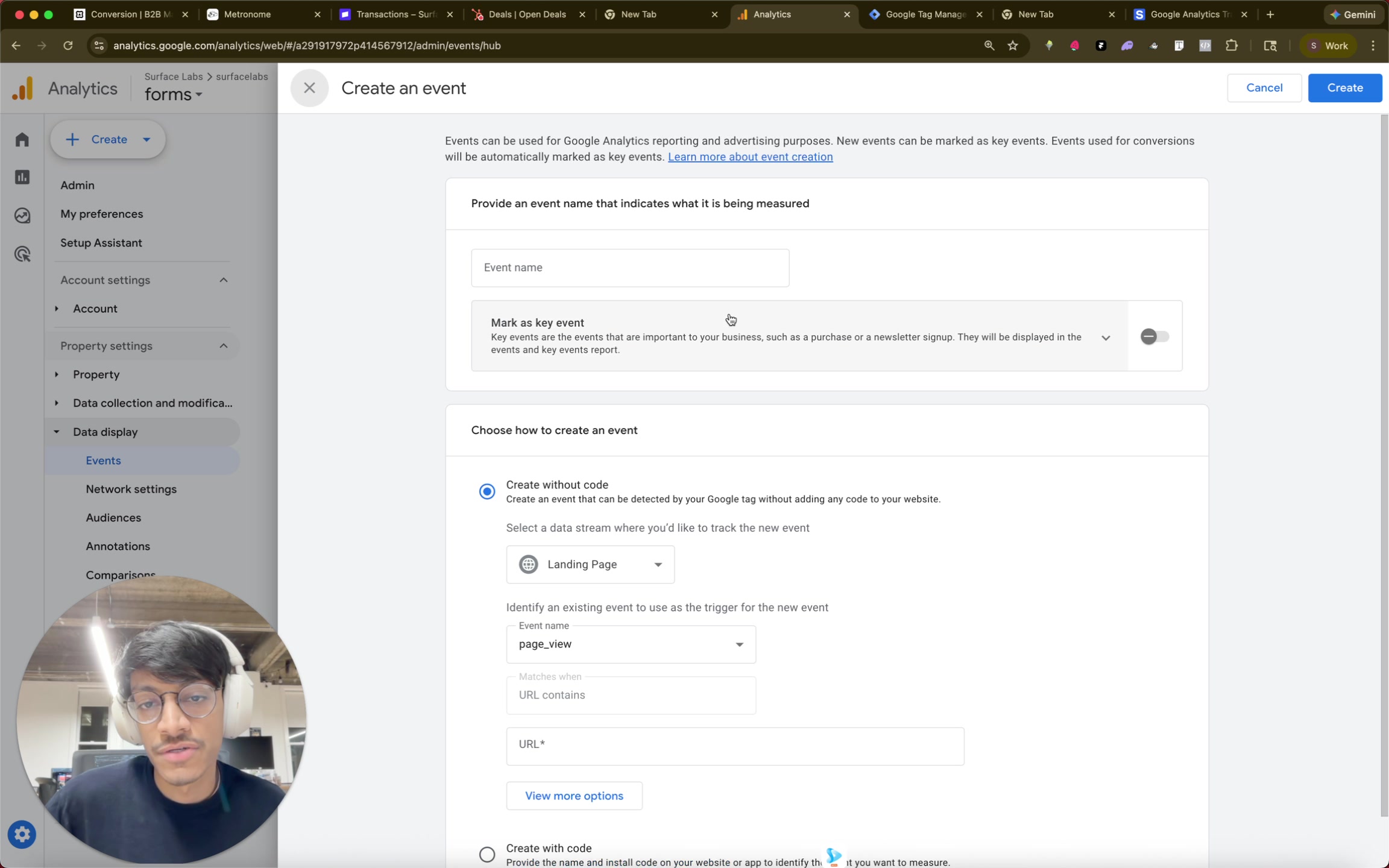
Repeat for each Surface form event you want to track. Common events include:
SurfaceFormEmailSubmitted- Fires when a visitor submits their emailSurfaceFormMeetingBooked- Fires when a visitor books a meetingSurfaceFormSubmitEvent- Fires on final form submission
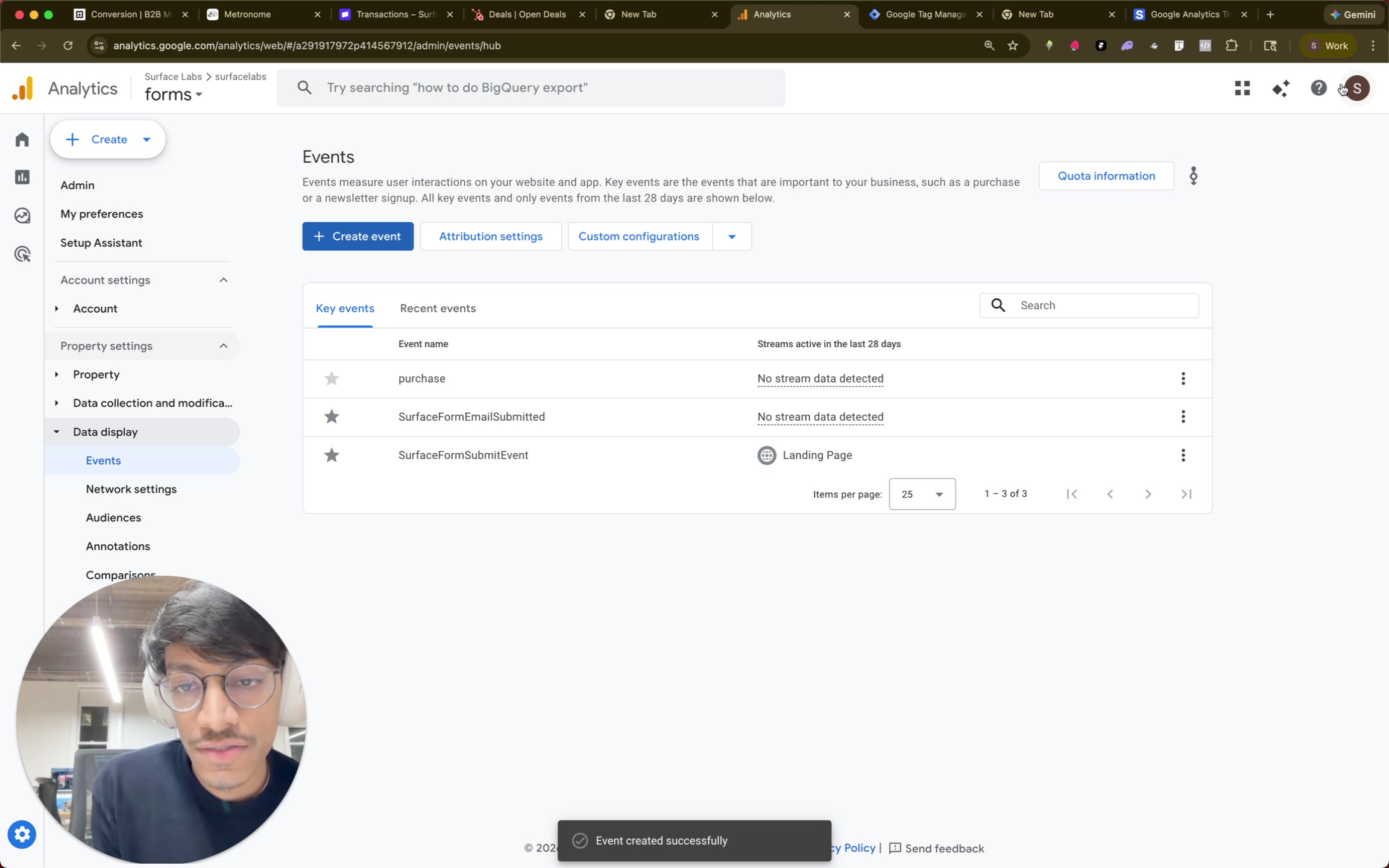
Step 2: Get Your Measurement ID
You'll need your GA4 Measurement ID to configure tags in GTM.
In Google Analytics, go to Admin > Data Streams
Select your web stream
Copy the Measurement ID (format:
G-XXXXXXXXXX)
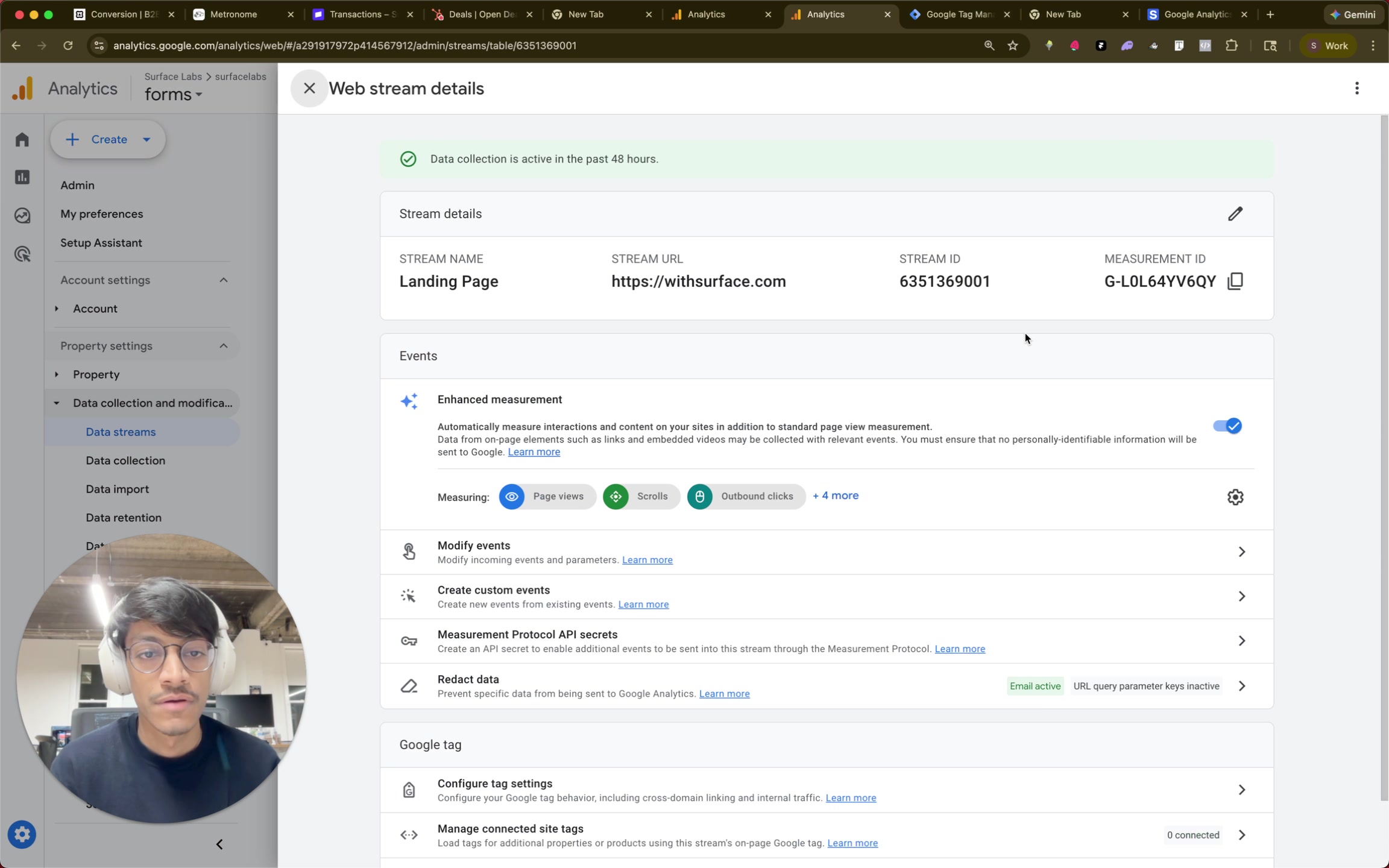
Step 3: Configure GTM Tags
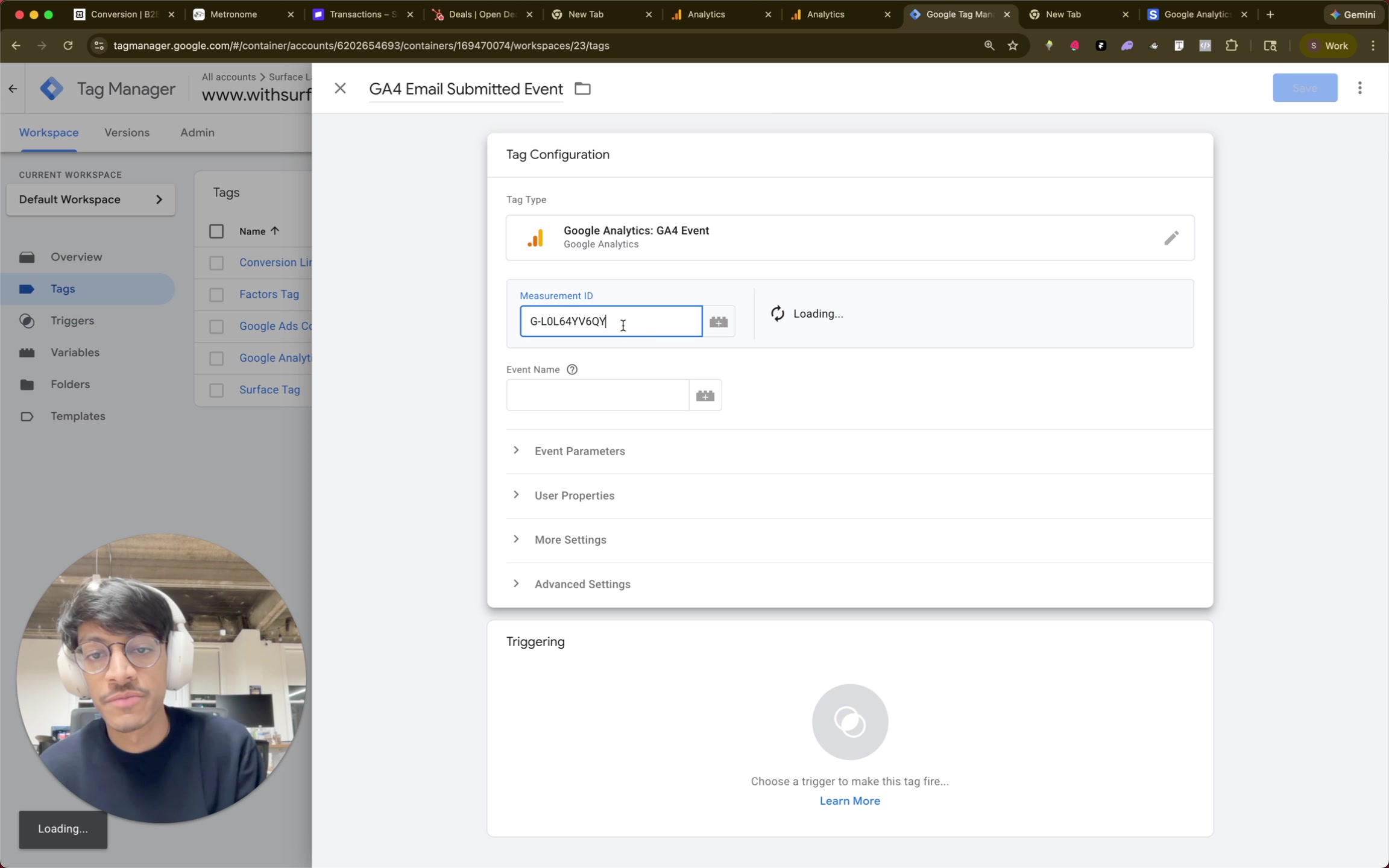
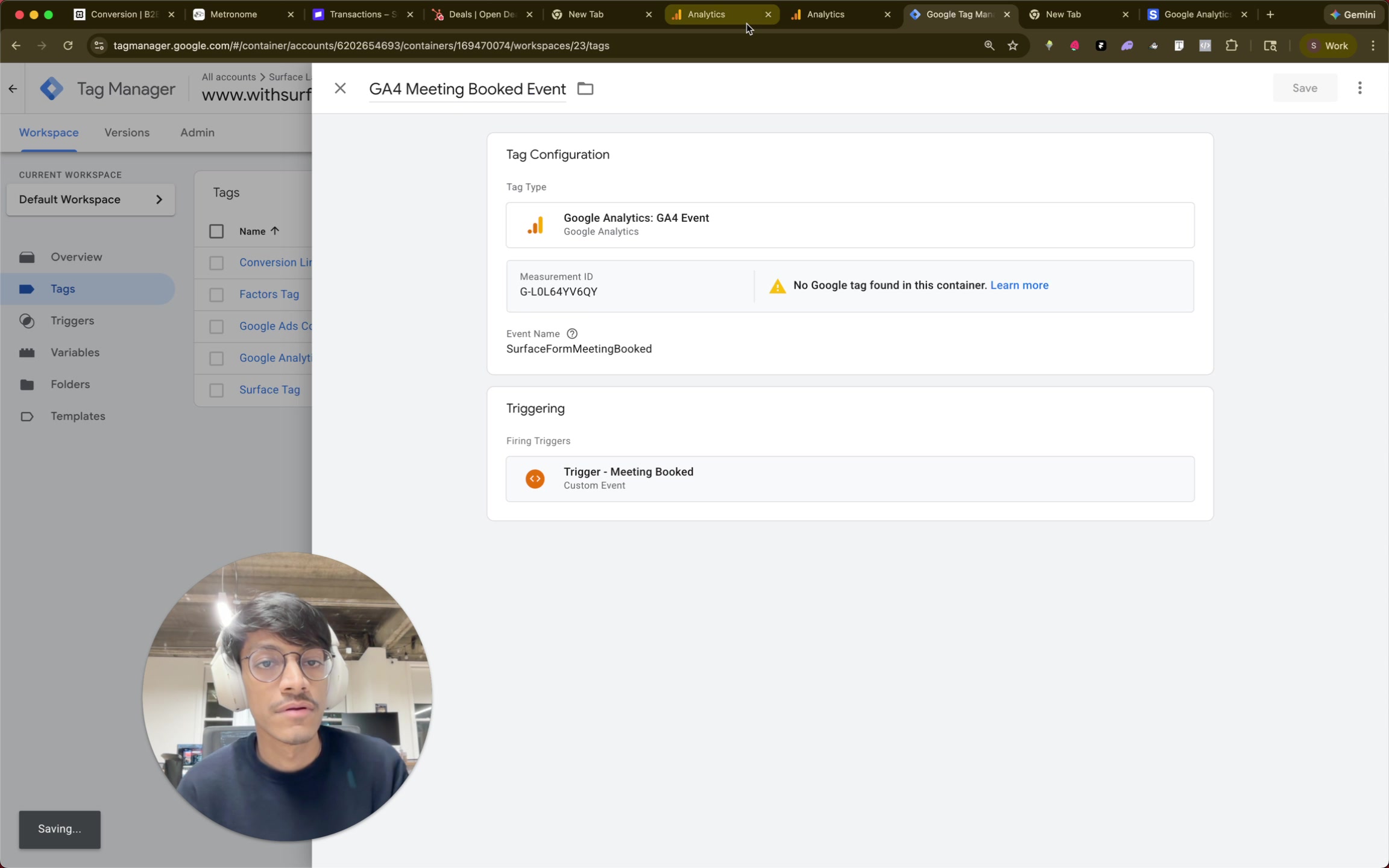
Create a GA4 Event tag in Google Tag Manager for each Surface form event.
In Google Tag Manager, navigate to Tags > New
Click Tag Configuration and select GA4 Event
Paste your Measurement ID
Set the Event Name to match exactly what you created in GA4 (e.g.,
SurfaceFormEmailSubmitted)Click Triggering and select the appropriate Surface form trigger
Save the tag
Surface forms push events to the dataLayer when actions occur. Common triggers include dlv-meetingBooked equals true for meeting bookings and dlv-emailSubmitted equals true for email captures.
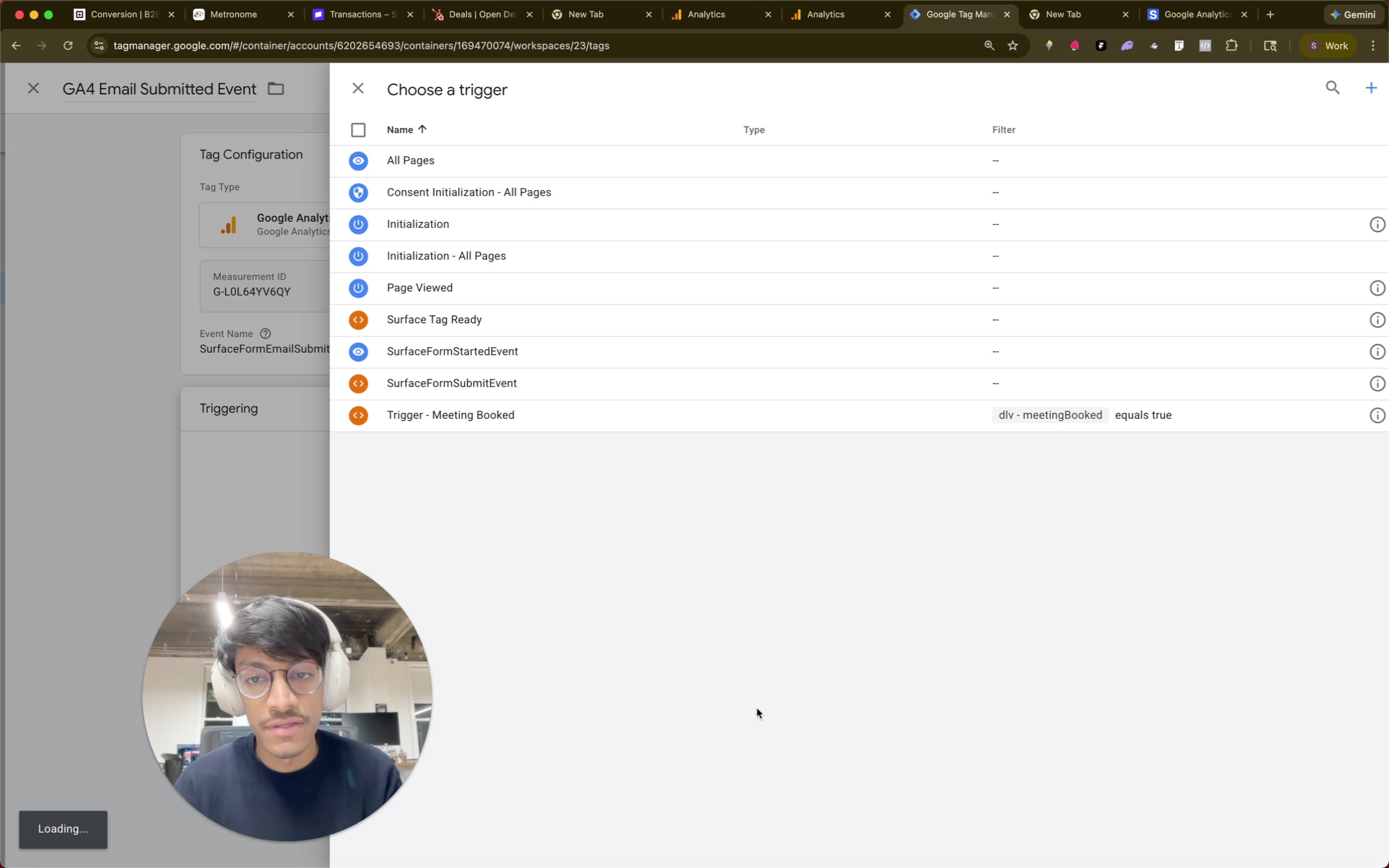
Repeat for each event. Your tags list should show all configured events:
Step 4: Publish and Test
In GTM, click Submit to publish your changes
Enable Preview mode to test your setup
Submit a form on your site
Check GTM preview to confirm tags fire
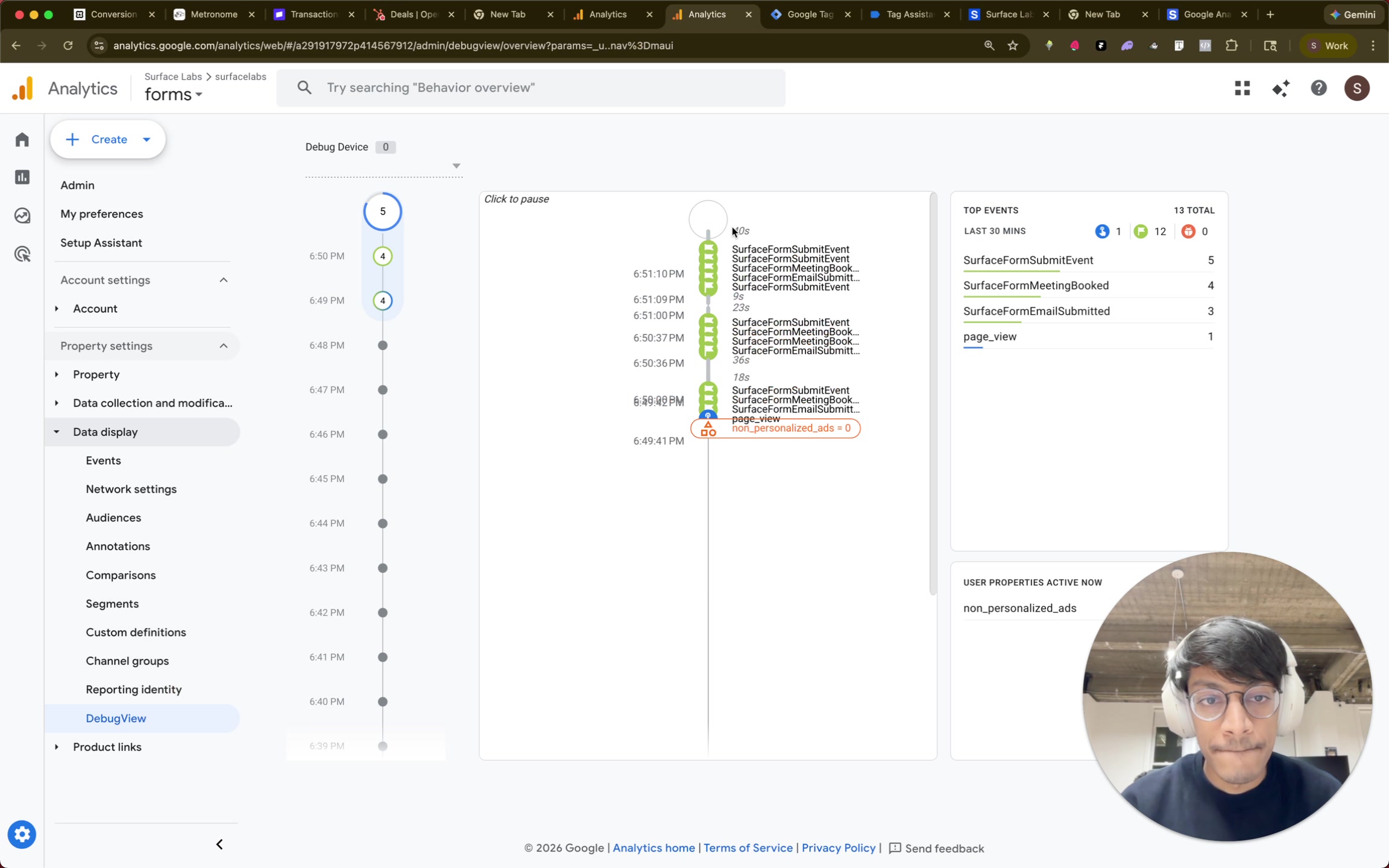
In Google Analytics, open Reports > Realtime > Overview or Admin > DebugView
Verify your events appear in the events list
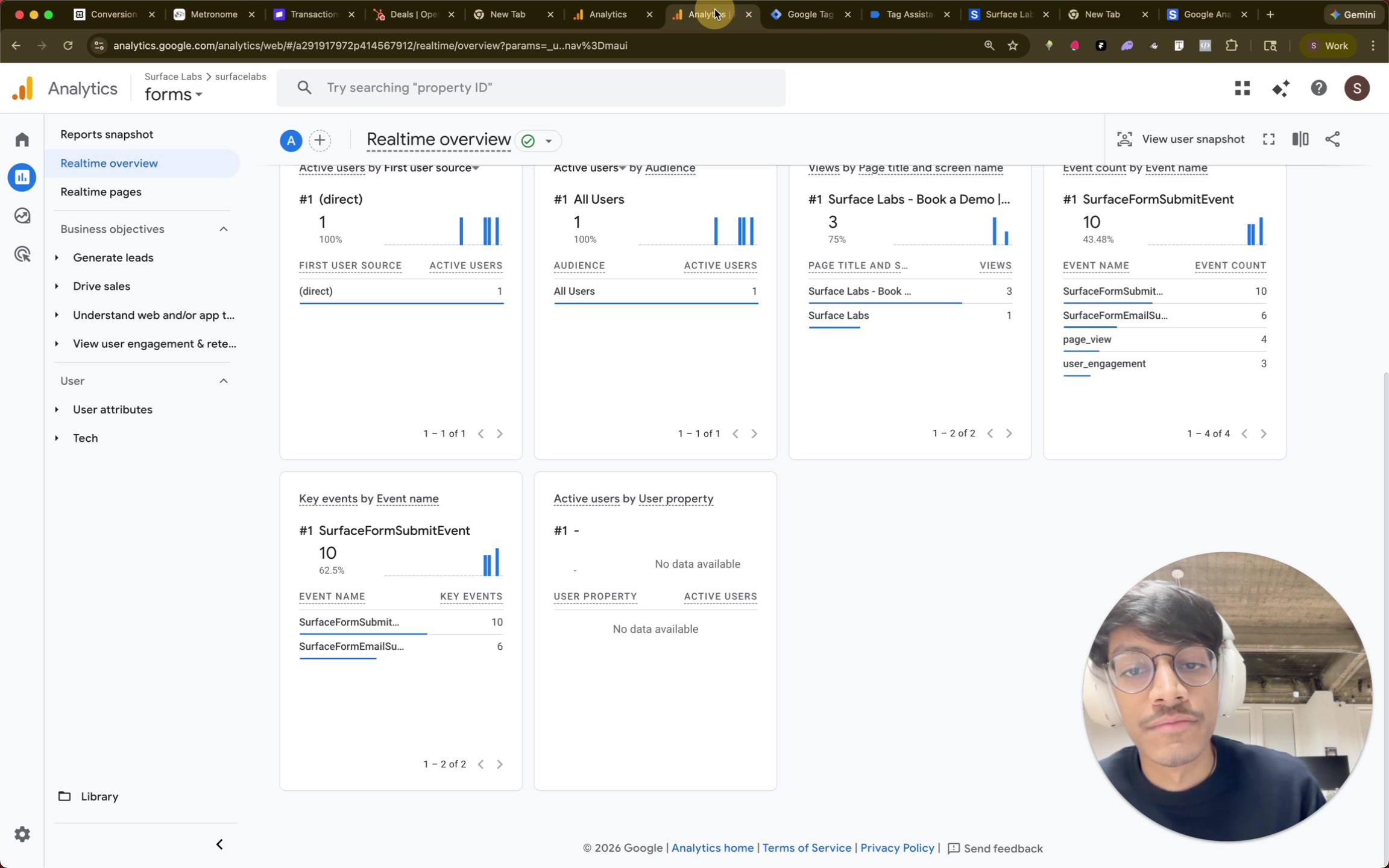
Events may take a few minutes to appear in reports. Historical data will backfill once events start firing.
Troubleshooting
Events not appearing in GA4: Verify the event name in GTM exactly matches what you created in Google Analytics. Names are case-sensitive.
Multiple events firing: Check your triggers to ensure they're not firing on multiple conditions. Use GTM preview mode to debug.
No data in reports: Wait 5-10 minutes after first submission. Use DebugView for real-time validation while testing.